Service Demo Walkthrough
A simple, screen-by-screen overview of how the service workflow works — from intake to pickup. Use the screenshots below as a reference during demos or staff training.
/public/demo/ and update the filenames in this page if needed.Dashboard Overview
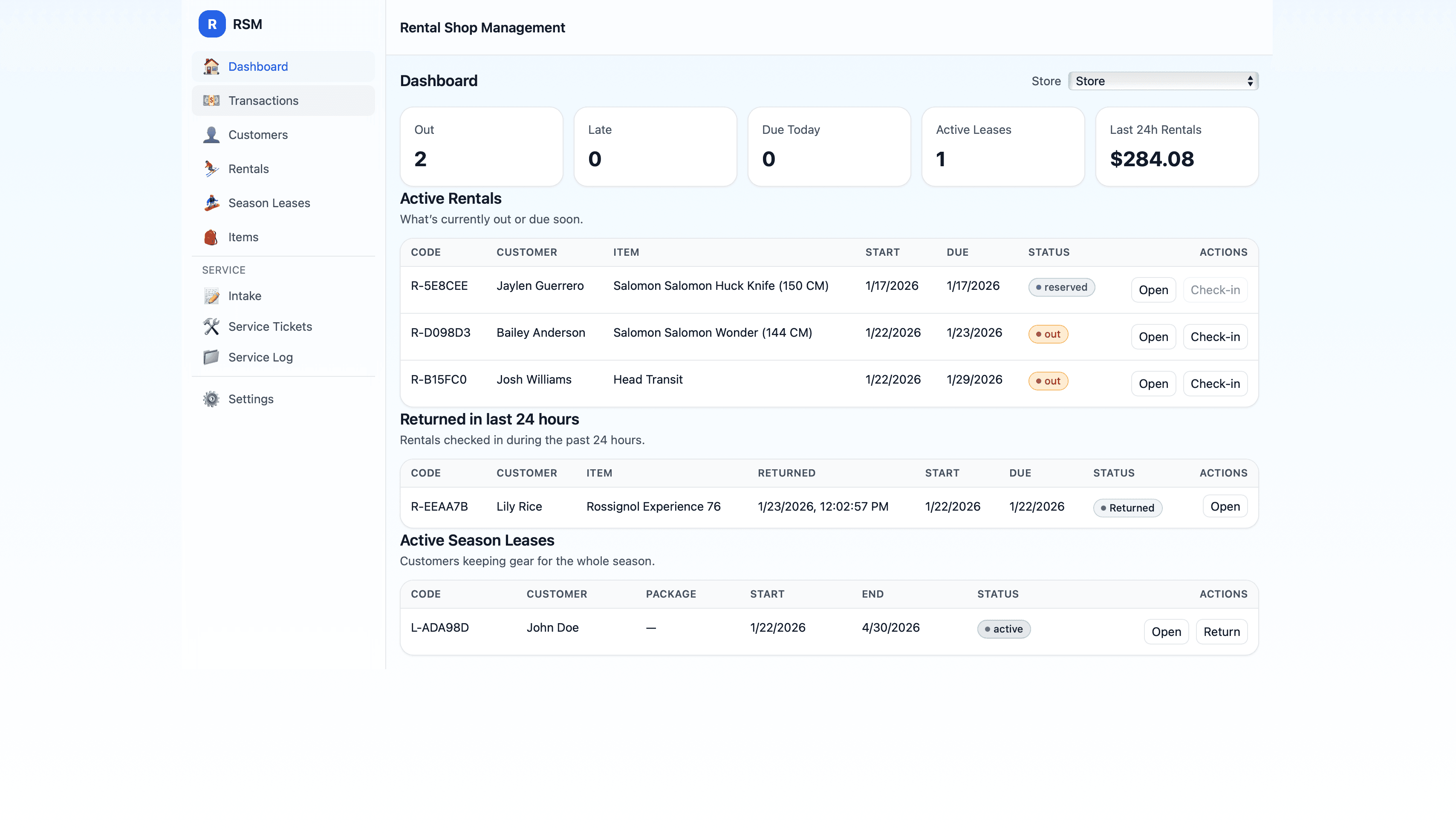
The dashboard gives staff a quick snapshot of what's happening today — active work, quick navigation, and important items that need attention.

- Quickly jump to core areas of the system
- See what needs attention right now
- Great starting point for staff
Service Tickets (Overview)
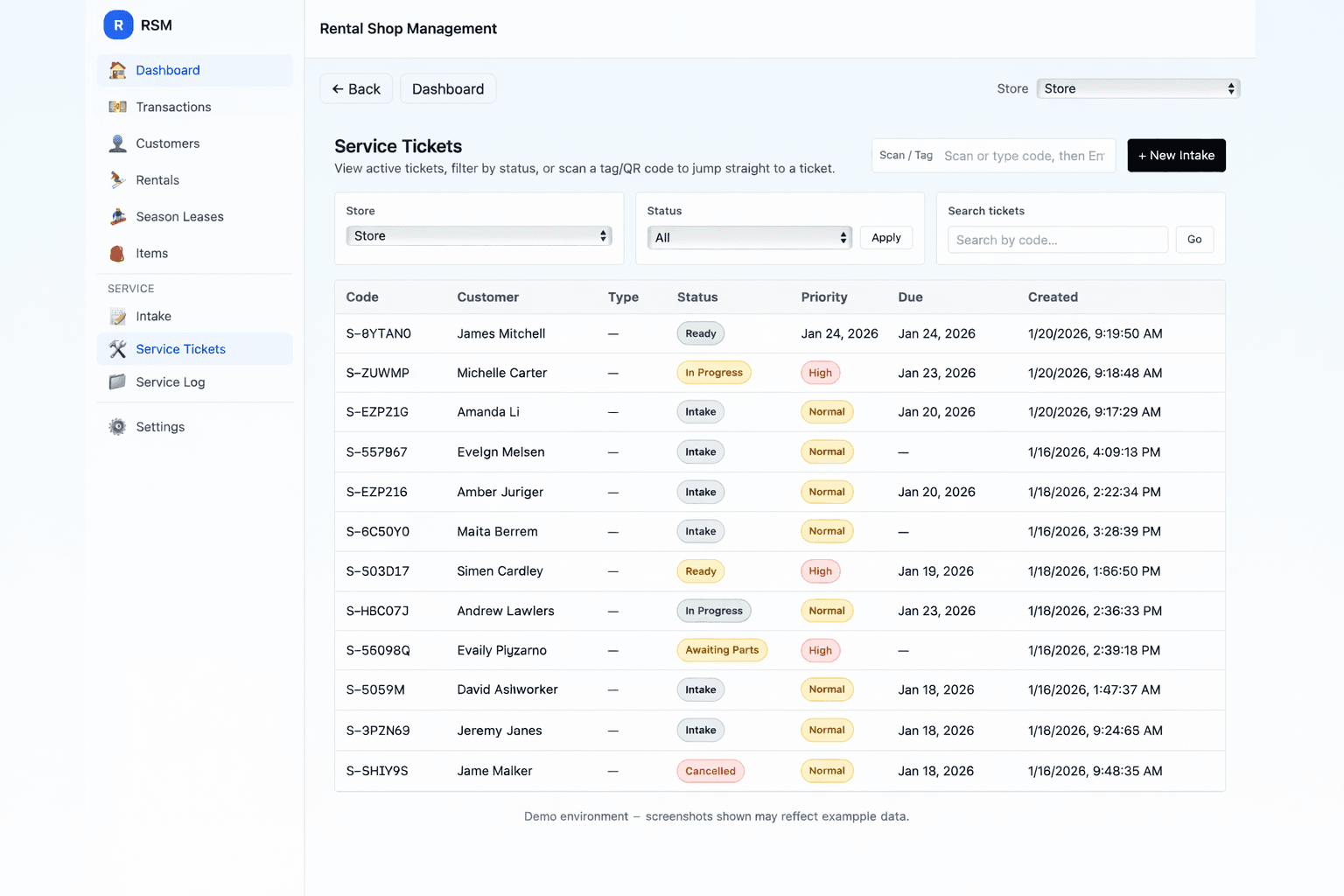
This is where staff can quickly see every open ticket, filter by status, and jump straight into a ticket by scanning a tag/QR code.

- Use Status + Search to find a ticket fast
- Scan/Tag field lets you jump directly to a ticket
- New Intake starts a new service drop-off
Service Ticket (Details)
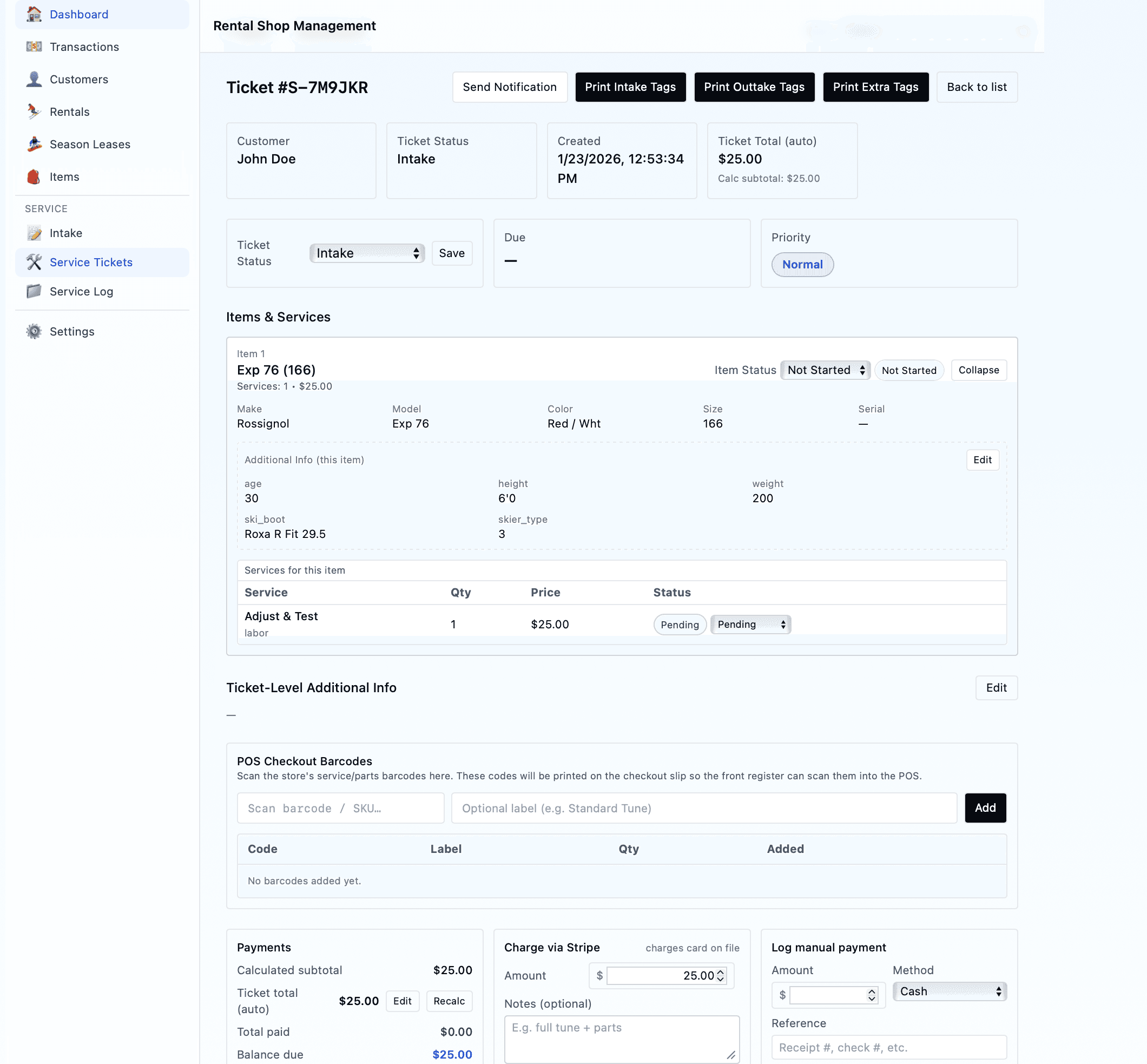
Inside a ticket, you can review the customer, items on the ticket, notes, parts, and progress. This is the main screen staff uses during service work.

- Update status as the item moves through the shop
- Add notes so the whole team stays aligned
- Everything stays attached to the ticket for traceability
Taking Payment
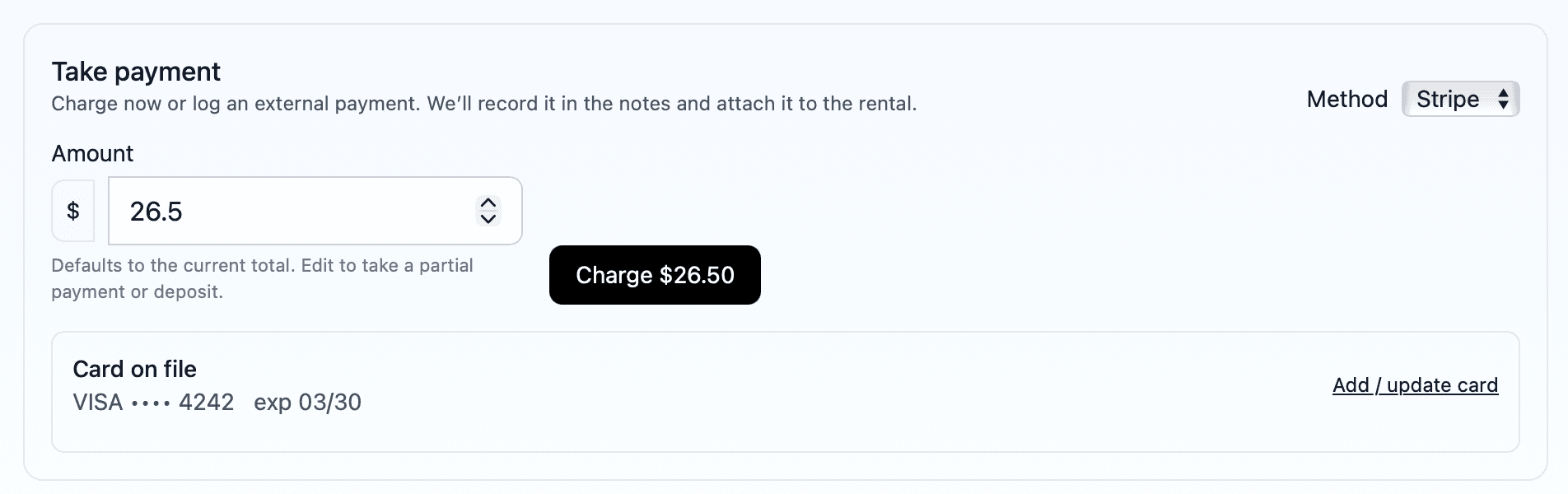
Collect payment right from the ticket. This is useful for service work, parts, or any balance due before pickup.

- Charge when the job is completed (or take a deposit)
- Keeps service + payment tied to the same record
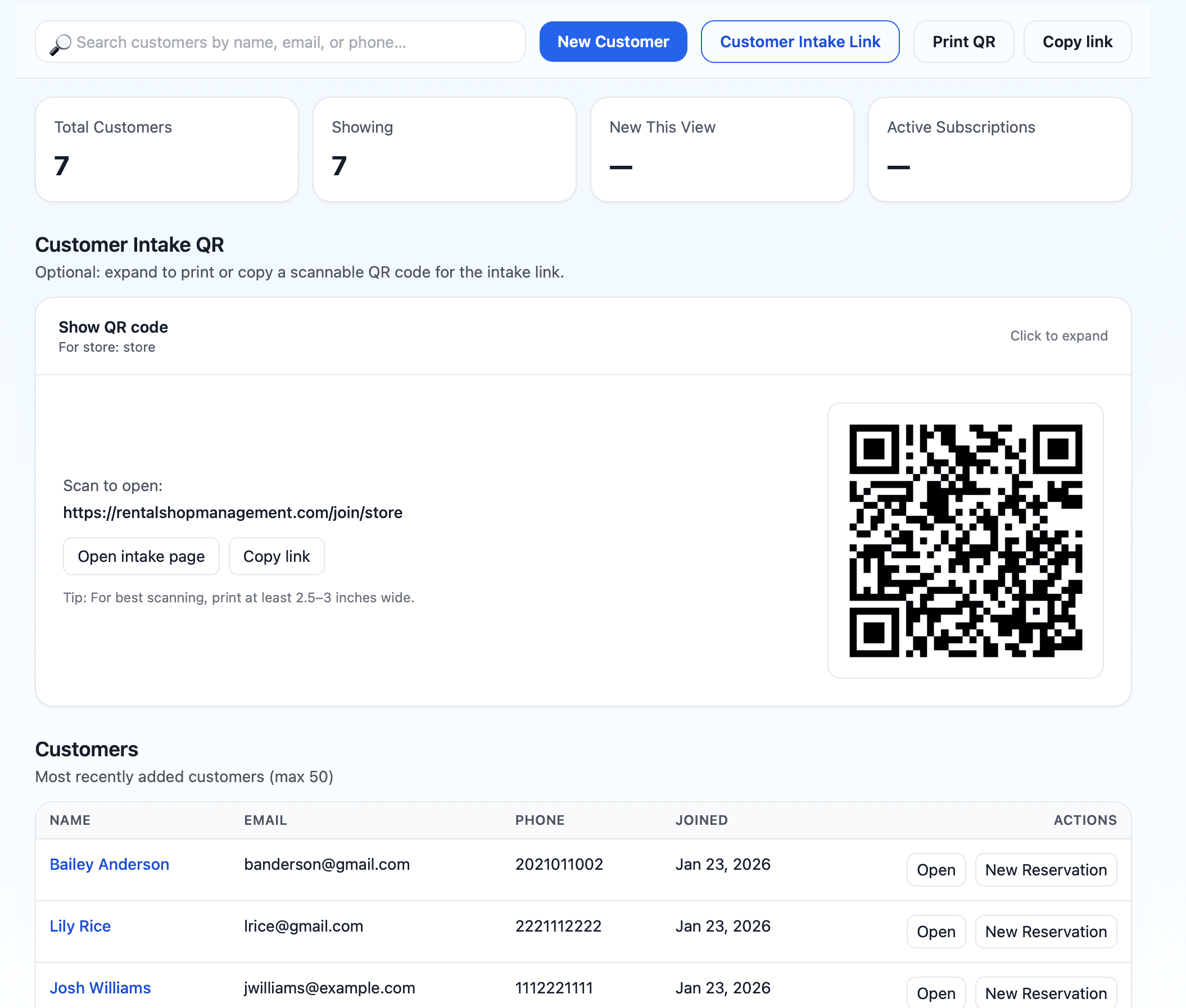
Customers
Customer profiles help repeat visits go faster. You can look up contact info, history, and keep everything centralized.

- Fast lookup by name, phone, or email
- See history at a glance during intake